AI Chatbots
How to Measure RAG Accuracy Before You Launch
RAG accuracy is two scores, not one. See how to build a gold question set, measure both halves, and set release gates that hold.
How to connect SharePoint, Google Drive and Confluence to an AI chatbot: ingestion, chunking, permission filtering, sync behaviour and the tests that prove it works.
 By Yatin Chaudhary
10 min read
By Yatin Chaudhary
10 min read
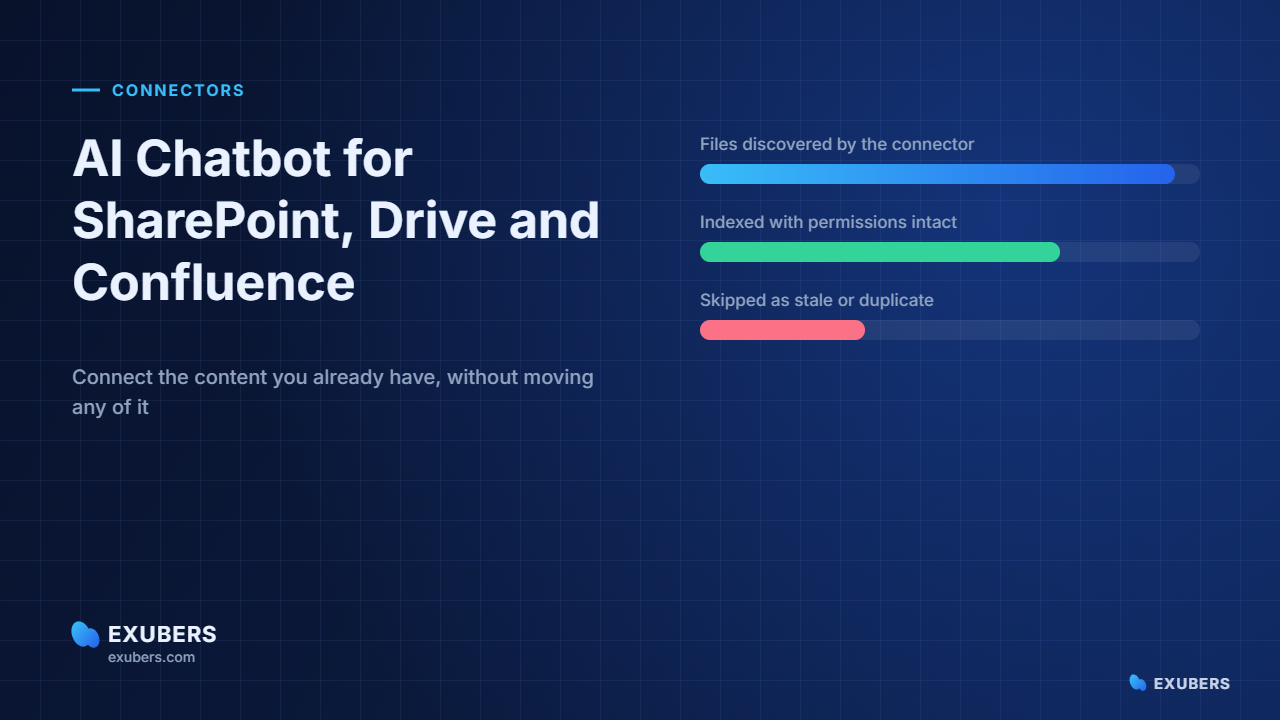
An AI chatbot for SharePoint, Google Drive or Confluence is mostly a connector problem. The model gets the credit, yet the answer quality is decided long before generation, in how your files are discovered, parsed and permissioned.
This guide walks through that pipeline. Moreover, it covers the differences between the three platforms, because each one hands over permissions and file structure in its own way.
By the end you will know what to connect, what to exclude, how sync should behave, and how to test whether the connection actually works.
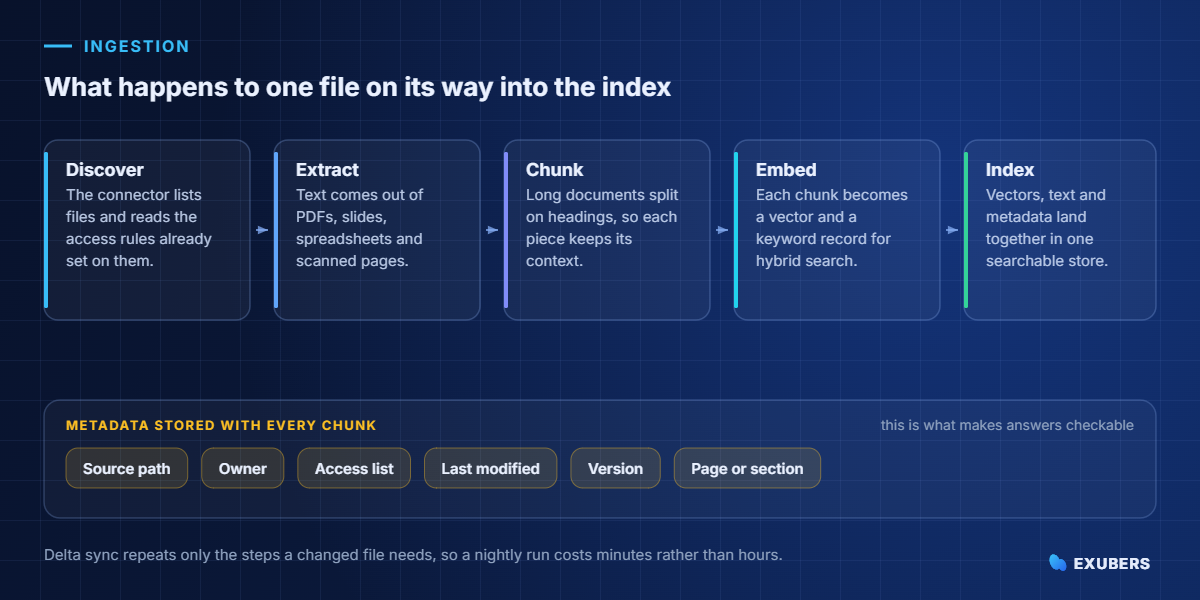
To be clear, connecting is not copying. A well-built connector reads your files in place, keeps a searchable index of their content, and refreshes that index when the source changes.
Consequently, your documents stay where your governance already lives. Retention rules, sharing settings and audit trails in SharePoint or Drive continue to apply, since the assistant never becomes the system of record.
Broadly, three things get stored during indexing. The extracted text, a vector representation of each chunk, and the metadata that says where the chunk came from and who may read it.
Naturally, that third item does the heavy lifting. Without reliable permission metadata, an assistant can only be safe by being useless, and most stalled pilots die on exactly that trade-off.
At first glance, the pipeline looks simple from outside. Inside, each stage has a failure mode worth knowing about.
Chunking causes more quality problems than any other stage. For example, a policy split mid-table produces answers that cite the right document while quoting the wrong row.
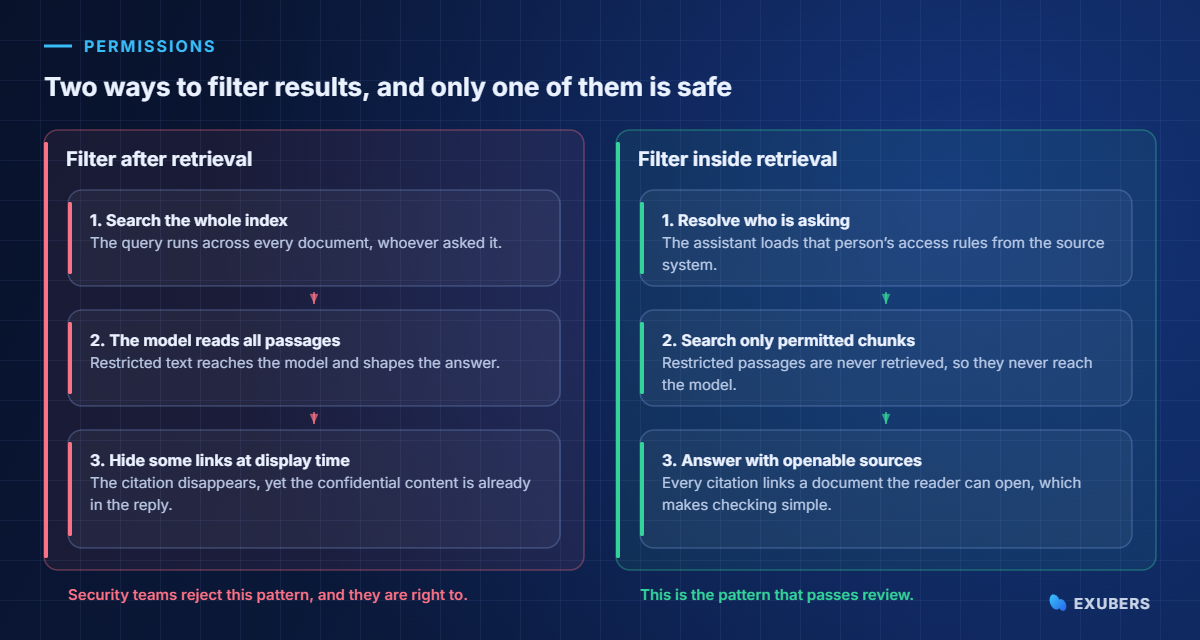
In practice, security review always arrives at the same question. Can someone reach a document through the assistant that they could not open directly?
Fundamentally, the answer depends on where the filter sits. When filtering happens after retrieval, restricted passages have already influenced the reply, therefore the control is cosmetic.
By contrast, filtering inside retrieval resolves the asker’s access first and searches only what they may read. Nothing restricted is retrieved, so nothing restricted can leak into an answer.
Similarly, query-time checks matter as well. Access changes hourly in most companies, and a nightly permission copy will happily serve a document that was locked down this morning.
Our guide to permission-aware chatbots and DPDP explains how the mirroring works, and why Indian teams treat it as a compliance requirement rather than a feature.
Broadly, the three platforms hold similar content, yet they present it in different shapes. Plan for that early, because it changes effort estimates.
| Aspect | SharePoint and OneDrive | Google Drive | Confluence |
|---|---|---|---|
| Structure | Sites, libraries and folders, often deeply nested | My Drive plus shared drives, with heavy link sharing | Spaces and page trees with clear hierarchy |
| Permissions | Inherited, with frequent item-level exceptions | Per-file sharing, including public links | Space and page restrictions |
| Common file types | Word, Excel, PowerPoint, PDF | Google Docs, Sheets, Slides, PDF | Native pages with attachments |
| Typical trap | Abandoned sites full of superseded drafts | Files shared with anyone who has the link | Archived spaces that still look current |
| Best first target | The policy or process library | The shared drive your team curates | The space your documentation team owns |
One warning about link sharing deserves emphasis. In Drive, a file shared with anyone holding the link is effectively public, so an assistant that indexes it can surface it to everybody inside the company.
Naturally, freshness and cost pull in opposite directions. Fortunately, three mechanisms working together solve both.
| Mechanism | What it does | How often |
|---|---|---|
| Full crawl | Reads every item and rebuilds the index | At setup, then rarely |
| Delta sync | Processes only files created, changed or deleted | Every few minutes to hourly |
| Permission check | Confirms the asker’s access as the query runs | Every question |
| Deletion handling | Removes chunks when the source file disappears | With each delta run |
Notably, deletion handling is the row teams forget. If removed files linger in the index, the assistant will keep quoting a document nobody can find, which erodes confidence quickly.
Generally, most content indexes without drama. Nevertheless, a handful of formats deserve attention before you promise coverage.
In addition, test each type with five real examples during setup. As a result you will discover extraction gaps in week one instead of week six.
In our experience, exclusions improve answers more reliably than any tuning. Above all, they remove the content that competes with your current documentation.
Finally, write the exclusion list down and review it monthly. Otherwise it becomes tribal knowledge, and the next administrator will quietly re-index the archive.
Remember that retrieval returns chunks rather than documents. Therefore the chunk boundary controls whether the model sees a complete thought or half of one.
In short, three rules cover most content. Split on headings, keep tables intact, and carry a short breadcrumb of the document title and section into every chunk.
Similarly, overlap helps at the seams. A modest overlap between neighbouring chunks prevents an answer from stopping mid-sentence when a clause spans a boundary.
Meanwhile, chunk size should follow the content. Dense policy text works well in smaller pieces, whereas narrative documentation reads better in larger ones.
Above all, run through this list before you call the integration finished. Each line has caused a real incident somewhere.
| Check | Why it matters |
|---|---|
| Service account scope | A broad account indexes content the audience should never see |
| Item-level permission support | Inherited folder rules hide exceptions that matter |
| Deleted file removal | Stale chunks produce answers with dead links |
| Optical character recognition | Scanned policies are common, and invisible without it |
| Rate limits and backoff | Large tenants throttle crawls, which stalls the first sync |
| Region of processing | Legal teams ask where the text is processed and stored |
| Audit logging | You need to answer who asked what, and which sources were used |
Realistically, testing takes a day and saves a quarter. Furthermore, it gives you a number to report rather than an impression.
Repeat the same set monthly. Because content drifts, a stable question set is the cheapest early warning you can build.
To begin with, text alone is not enough. The record that travels with each chunk decides whether a reader can verify the reply in one click.
In practice, five fields carry most of the weight. The source path tells people where the answer lives. The owner tells them who to ask. The access list drives filtering. The modified date exposes stale content. The section or page number takes them to the exact paragraph.
Effective dates deserve a field of their own where you have them. Policy content in particular changes on a schedule, and a document that reads well may still have expired in April.
Consequently, an assistant with rich metadata can do things a plain search cannot. It can prefer newer versions, warn when two documents disagree, and quietly rank an archived space below a maintained one.
Unfortunately, problems rarely announce themselves. Instead, they show up as patterns in the logs, and each pattern points at a specific stage of the pipeline.
| Symptom | Likely cause | Where to look |
|---|---|---|
| Answers cite old versions | Superseded files still indexed | Exclusion rules and deletion handling |
| Confident answers, wrong details | Chunks split mid-table | Chunking strategy |
| Right document, no answer | Extraction failed on that format | Character recognition and parsers |
| Users see different results | Permissions working as intended | Confirm with the access list before investigating |
| Nothing found for new files | Delta sync stalled or throttled | Connector logs and rate limits |
So review these signals weekly for the first month. After that, a monthly check is usually enough, provided the question set keeps running.
Typically, vendors quote hours while security teams quote months. The honest answer sits between the two, and it depends far more on your tenant than on the software.
| Stage | Typical duration | What slows it down |
|---|---|---|
| Access approval | Two days to three weeks | Tenant policy review and service account scope |
| First full crawl | Hours to a few days | Library size, rate limits and file formats |
| Permission validation | Two to four days | Item-level exceptions and shared links |
| Question set testing | One to two days | Writing fifty good questions, not running them |
| Content cleanup | Ongoing | Duplicate drafts and unowned folders |
Plan the approval conversation first, then. Bring the service account scope, the processing region and the audit logging answer to that meeting, because those three questions decide the timeline.
Content cleanup never truly finishes, and that is acceptable. Aim for a library that is right rather than complete, since a small trusted corpus outperforms a large uncertain one on every measure that matters.
No. It indexes the text and keeps pointers back to the original items, so the files stay in SharePoint under your existing retention and sharing rules.
Yes, and most companies need exactly that. One assistant can search several sources together, provided each connector brings its own permission data.
Delta sync typically runs every few minutes, so edits appear quickly. Permission changes should apply immediately, since they are checked as the question runs.
They need optical character recognition during extraction. Without it, the file is indexed as an empty shell and never appears in results.
Start with one curated library and a few hundred current documents. Afterwards, let the gap report decide what to add, rather than connecting everything at once.
Usually yes. The assistant sits beside traditional enterprise search and answers questions, while classic search remains useful for browsing and exact file lookup.
To begin with, pick one library that your team already trusts. Connect it, mirror its permissions, index a few hundred current documents, and run your fifty-question test before anyone else sees the assistant.
Then widen slowly, guided by the gaps your users find. If you would rather not build connectors, parsing and permission mirroring yourself, Intellowork ships them as part of the platform, so an AI chatbot for SharePoint, Drive or Confluence becomes a configuration task instead of a project.

Yatin Chaudhary writes on enterprise search, AI retrieval and platform engineering at Exubers Technologies, where the team builds search, AI, cloud and DevOps systems for enterprises across India and the GCC.
RAG accuracy is two scores, not one. See how to build a gold question set, measure both halves, and set release gates that hold.
A multilingual AI chatbot answers a Hindi question from English documents. Here is the architecture, the testing method and a…
A repeatable way to test an AI chatbot before launch: build a golden question set, score retrieval and grounding separately, and…
Tell us what you are trying to ship. We will tell you what it actually takes — scope, sequence and the risks worth knowing about before you commit budget.